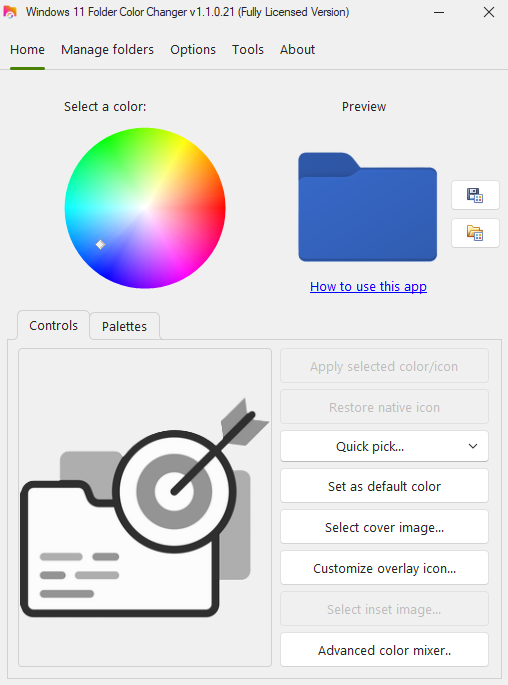
Light mode & dark mode (fully licensed copy) - Controls tab


- Color buttons (free version) / Color wheel (fully licensed version) - select the color
- Unlock more features (free version) - purchase a licence
- Target - drag & drop folders here or click to automatically grab all folders currently selected in Windows Explorer
- Apply selected color/icon - apply the icon as per the preview
- Restore native icon - restore the native Windows 11 folder icon
- Quick pick - select the native Windows 11 folder color, your default color, or the most recently used color
- Set as default color - set the selected color as the default color (your go-to / preferred color)
- Select cover image - select an image to create a folder cover
- Customize overlay icon - customize your preferred folder overlay icon
- Select inset image (used with the open folder icon style) - insert an inset image into the folder
- Advanced color mixer - fine tune any color (R,G,B, hex, brightness)
Light mode & dark mode (fully licensed copy) - Palette tab

- Color buttons - select a color or click and hold to open the advanced color mixer
- Installed palettes - available color palettes (you can also create and install your own)
- Save color palette - save your color set
- Install color palette - install any of your saved color palettes
- Backup installed palettes - backup your palettes (e.g. to copy to another computer)
- Restore palettes - restore a palette from a backup
- Uninstall selected palette - removes the selected palette from your computer
Quick pick drop down

- ...native color - select the native Windows 11 folder color
- ...default color - select your default color (if set)
- ...most recently applied color - select the most recently applied color (if any)
Manage folders

- Find and select folder(s) - find and select folders in the list based on part or all of their file name
- Select / Unselect all - select or unselect all
- Add folder... - browse for a folder to manually add to the list
- Remove folder(s) - remove one or more folders from the list
- Save folder list... - save the current list to instantly open it next time without selecting the folders first
- Open folder list... - open a previously saved folder list
- Clear list - clear the folder list
Options
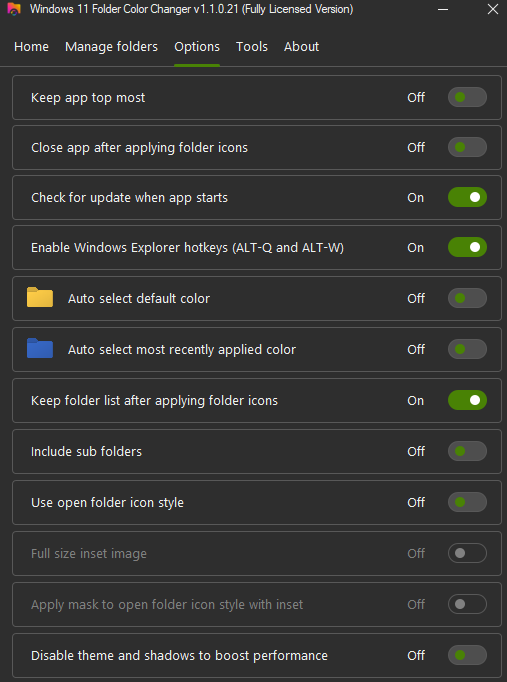
- Keep app topmost - keep the app window on top of all other windows
- Close app after applying color(s) - automatically close the app after applying folder icons
- Check for update when app starts - check for updates when you run the app
- Enable Windows Explorer hotkeys - enable the ALT-Q and ALT-W hotkeys to instantly send folders to the app from Windows Explorer and/or apply either your default color or most recently applied color (if enabled, the app runs in suspended mode when you click X)
- Auto select default color - select your default color when the app runs
- Auto select most recently applied color - select the most recently applied color when the app runs
- Keep folder list if app stays open after applying color - keep the folder list if the app stays open in order to be able to change the icons/colors right away without having to reselect folders
- Include sub folders - include all sub folders of any selected folders
- Use open folder icon style - use the 'open folder' icon style that Windows typically uses for content aware folders
- Full size inset image - inset images are resized to full size (similar to cover images, but "inside" the open folder)
- Apply mask to open folder icon style with inset - masks the inset image, similar to what Windows typically does for content aware folders
- Disable theme and shadows to boost performance - disables the Windows 11 look and feel and reverts to a simple, flat, look and feel (not recommended unless the app is very slow on your computer)
Tools

- Rebuild icon cache - forces Windows 11 to refresh its entire icon cache
- Restart Explorer - restarts Windows Explorer (closes all open Windows Explorer windows and tabs) without rebuilding the icon cache
- Run Task Manager - starts the Task Manager (e.g. in case Windows Explorer doesn't start back up)
- Support Console - enter commands provided by our team during support requests here
- Validate license - validate or otherwise reinstate your previously activated license for this installation of the app without re-entering your product key and using another activation slot
- Quit app - completely shuts down the app, including the hotkeys
- Settings file - view the settings file (use at own risk!)
- Send to Support - send the settings file to our team during support requests
- App icon cache - this is where all the icons applied to folders using the app are stored
About

- Legal notices
- App website - visit Windows 11 Folder Color Changer website
- License agreement - view the End User License Agreement
- Check for updates - checks for updates and allows you to download any updates directly from within the app
- Version history - change log
- How to use this app - a quick tutorial
Customize overlay icon

- A few default overlay icons (but importantly, you can choose your own by clicking Select image)
- Center overlay icon - centers the overlay icon in the middle of the folder
- Specify position of overlay icon - specify the x / y coordinates of the overlay icon or click one of the align to grid controls to position the overlay icon top left, top centre, top right, centre left, centre, centre right, bottom left, bottom centre or bottom right (you can click and hold the + and - buttons to quickly move the overlay icon)
- Overlay icon size - resize the overlay icon (crop warning lines will appear when you near the crop limits where Windows will crop your folder icon)
- Clear overlay icon - clears the overlay icon
Advanced color mixer

- Specify or adjust R,G,B
- Hex - enter color hex code
- Brightness - adjust the brightness of the color
- Color wheel - select a color
- Open color from file - open a color file saved from this window
- Save color to file - save a color for later use
- Eye dropper tool - a basic eye dropper to pick any color off your screen

To use the eye dropper, using your mouse pointer, focus the desired pixel in the red square and click to select. To revert to the color wheel, click Color wheel.
Windows 11 Folder Color Changer in action