

Version History
1.1.0.12 (29/12/2023)
New
- User request fulfilled: Starting with version 1.1.0.12, you can now launch Windows 11 Folder Color Changer from the Windows Explorer context menu for folders (i.e. select and right click on one or more folders). This will launch and arm the app with the selected folders. See known issues below.

- The Windows 11 Folder Color Changer installer and executable (exe file) are now digitally signed.
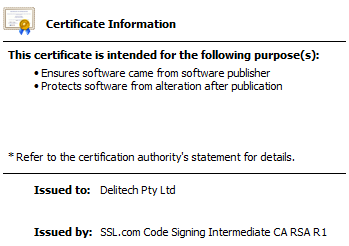
*** THANK YOU TO THE GENEROUS DONOR WHO MADE THIS POSSIBLE BY SPONSORING A CODE CERTIFICATE FOR ONE YEAR. ***
Changed
- Because the new Windows Explorer context menu entry runs the app with system privileges as opposed to the user’s privileges, we’ve had to migrate the app’s settings from the Windows registry to the user’s appdata\roaming folder to avoid a conflict between the settings when running the app “normally” vs the new context menu entry.
- To ensure the new Windows Explorer context menu appears for all users, the app must now be installed separately for every user profile on the computer.
- We added a “Find string” label to the find box on “Manage folders”.
- We changed the default font size from 11pt to 10pt at 100% scaling to align with the font size used in the Windows 11 “Settings” app at 100% scaling.
- We now enforce licensing across user profiles on the same computer.
Fixed
- We fixed the scaling issues for 150% and up.
- We fixed an issue where the color mixer background sometimes stays white when live-switching to dark mode
1.1.0.11 (18/12/2023)
New
- Starting with the fully licensed (premium) version 1.1.0.11, you can now create beautiful folder covers. To use this feature, select “…cover image” under “Quick pick…” on the main window.

You can now give your picture folders in particular a gorgeous new appearance!

- Starting with version 1.1.0.11, you can unlock up to 5 installs of Windows 11 Folder Color Changer with the same license at the same time (if you’re currently a premium user, you’ll need to manually license at least one (new) install in order to enable this fantastic new offering).
Changed & Improved
- As described above, we reworked the licencing engine. We now use “Product keys” in place of “Unlock codes”.
- Because the extra features such as overlay icons and cover images are also tied to the licencing, we changed “Unlock more colors!” to “Unlock more features!”.
- In similar fashion, we updated the “Unlock more colors” window title to “Unlock more features”.
- We removed the software ID from the “Unlock more features” window and updated the window to now prompt you for your “Product key” in place of your “Unlock code”.
- In similar fashion, we changed the “Request unlock code” button to “Request product key”.
- Due to the addition of cover images, we changed “Apply selected color” to “Apply selected color/icon”.
Fixed
- We fixed some glitches with the mini preview icons for the default and most recent colors on “Options”.
- We fixed an issue where when opening the “Advanced color mixer” window with the native color selected, mixing a color and then clicking Cancel sometimes resulted in a black folder icon.
1.1.0.10 (8/12/2023)
New
- Starting with the fully licensed version 1.1.0.10, you can now use the advanced color mixer.

- Added “Version history” to “About”
- Starting with version 1.1.0.10, you can now download updates from within the app if there is an update available after clicking “Check for updates”

Changed & Improved
- Starting with version 1.1.0.10, we’ve consolidated the features on a Windows 11 style menu. Yes, if you’ve been using our app since its first release, this will take some getting used to. 🙂

- Starting with version 1.1.0.10, we’ve begun a migration to a more natural Windows 11 look and feel. This includes using your Windows 11 accent color. For example:

- You can now drop folders on the folder list under “Manage folders”
- We moved the performance warning when enabling “Include sub folders” to appear during selection.
- We changed “Auto select default folder color” to “Auto select default color”
- We changed “Keep folder list if app stays open after applying folder icons” to “Keep folder list if app stays open after applying color”
- We added the “Oops! Something is preventing the app from running normally” message.
- We changed “Configure overlay icon” to “Customize overlay icon”
- We changed “Restore native color” to “Restore native icon” to differentiate for example between using the native color (with an overlay icon) as opposed to reverting to the original folder icon.
- We swopped ALT-W and ALT-Q in “Enable Wndows Explorer hotkeys”
- We added a Cancel button on the “Configure overlay icon” window (there’s also a Cancel button on the “Advanced Color Mixer” window)
- If you use the ALT-W hotkey and you have one or more desktop folders selected (that you forgot about), the app will now alert you.
- Starting with version 1.1.0.10, you can now select between “quick picking” the native color, your default color, or the most recently applied color.
Fixed
- We fixed an issue where users get a “You messed with the registry” error when opening the “Configure overlay icon” window. We’ve also changed this particular message to a more user friendly message whenever this actual error (the real error) occurs. 🙂
- We fixed some more minor issues with the positioning and resizing controls on the “Configure overlay icon” window.
- We made several improvements when switching between light and dark mode while the app is running. There are still some quirks that relate mostly to Windows 11 rendering.
- We fixed the scaling issue that occured when live-scaling the app to 150+ and back.
- We fixed an issue where the top most setting doesn’t apply when you first run the app.
- We fixed an issue where if you repeatedly press the hotkeys the app eventually crashes.
- We fixed an issue where the auto-select default/most recently icons under Options don’t always update.
1.1.0.9 (4/12/2023)
This update is a medium impact service release.
New
- Added options to rebuild icon cache, restart explorer and run task manager to the “Options & tools” window.
Changed & Improved
- We improved the rendering quality of the folder icon.
- Renamed “Options” window to “Options & tools”.
- Moved “Quit app” button to “Options & tools”.
Fixed
- Dragging a folder from the navigation pane in Windows Explorer stopped working in version 1.1.0.8. We fixed the issue in this update.
- Hotkeys are now working on the Desktop. You can now send selected folders to the app if hotkeys are enabled.
- Most of the quirks pertaining to positioning and sizing of the overlay icons haven now been fixed. We will continue to respond to any further reports.
- When selecting a color, then configuring an overlay icon, and then reverting to the native Windows folder icon (keeping the overlay icon in place) and applying this to a folder, the overlay icon was not applied. We fixed the issue in this update.
- We fixed an issue where “Include subfolders” was checked under “Options & tools” but didn’t take effect until you uncheck and recheck the box.
1.1.0.8 (4/12/2023)
New
- Starting with the premium version 1.1.0.8, we now support overlay icons, complete with positioning and resizing controls. You can also select your own image.
- Added the ability to quickly pick the native Windows folder color as opposed to trying to select it in the color picker.
- Starting with version 1.1.0.8, we’ve updated the icon cache to re-use icons from the icon cache where possible.
Changed & Improved
- Sub folders are now applied regardless of whether you drag, click the target or use the hotkey.
- Improved alerts if a folder cannot be added due to Windows permissions.
- Changed “Restore Windows default” to “Restore native color”
- Improved caching.
- Removed some legacy code (yes, we’re tidying up after one year already!)
- Folder icons in places such as Documents and Desktop should now apply successfully. Nb: Using the hotkey still doesn’t seem to work for such folders. Our team is working on this!
1.1.0.7 (23/11/2023)
New
- User request fulfilled: Starting with version 1.1.0.7, the app is now storing all its associated folder icons in a global icon cache within the User folder as opposed to their respective folders. This will avoid “old” and “unused” prior icon files from cluttering the folders, particularly if the user has enabled viewing hidden files. This lays the foundation for backing up the global icon cache in future.
- Starting with version 1.1.0.7, the app will clean up “old” and “unused” prior / orphaned icons in a folder as soon as that folder is first updated again from within the app. We will remove this “garbage collection” in a later version.
- Added an option to include sub folders. At this time, the top level folder must still be dragged onto the target to include sub folders for this to work. Using the ALT-W hotkey or clicking the target will add only the top level folder itself. If enabled, the app will recursively change the icon of every sub folder within every selected folder. No need to manually change the individual sub folder icons.
Warning: This may significantly impact performance depending on the total number of folders. We recommend keeping this option disabled and only enable it as and when you specifically need it. Exercise care. - Added a total folder count to the Manage Folders window.
- Added the ability to Select/Unselect all on the Manage Folders window.
- Added the ability to Clear folder list on the Manage Folders Window.
1.1.0.6 (22/11/2023)
This update is a high impact service release.
- Fixed issue where Options don’t get saved and/or don’t take effect.
- Fixed issue where app doesn’t check for updates even if “Check for update when app starts” is enabled
- Fixed issue where default color replaces most recent color
- Fixed issue where app doesn’t always automatically capture folders when using ALT-Q / ALT-W hotkeys in Windows Explorer
- Fixed issue where “Remove folder(s) from list” in Manage folders only removed one folder
- Changed “Apply folder icon” to “Apply selected color”
- Changed “Restore defaults” to “Restore Windows default” to resolve ambiguity with “Set default color”
- Changed “Set default” to “Set default color”
- Added the ability to click the target to automatically capture any folders selected in Windows Explorer
- Added “Clear folder list” to Manage folders
1.1.0.5 (21/11/2023)
This update is a medium impact service release.
- Consolidated “Auto select” and “Auto apply” icons. How the app behaves will depend on whether you only run the app/use the ALT-Q hotkey, or use the ALT-W hotkey. If you only run the app/use ALT-Q, the color will be automatically selected. If you use the ALT-W hotkey, the color will be automatically selected and applied to the selected folders.
- Added indicator icons next to the “Auto select” options to help distinguish between them.
- Made performance improvements when applying a color to many folders.
- Added option to keep the current folder list if the app stays open after applying colors. This is useful if you’ve changed the folders and don’t like their appearance just yet, so you don’t have to redo everything. (Of course you can still save your folder list for later re-use also).
- Fixed issue where the app will crash if you use ALT-W combined with the “Close app after applying folder icons” setting but you haven’t opted to use either of the default colors. The app will now use the default gray folder icon if this happens.
1.1.0.4 (21/11/2023)
New, Changes & Improvements
- Updated the color pickers for the freeware and licensed versions. The licensed version now includes unlimited colors!
- Added dark mode support.
- Updated the main window by including a preview icon.
- Added the “About this app” window. Added “Quit app” to this window to completely exit the app and shut down Windows Explorer hotkeys.
- Added two more options: Select the most recent folder icon on run & Apply the most recent folder icon on run.
Disabled & Deprecated
- Deprecated the welcome prompt
- Disabled “Custom icon” while we’re working on icon overlays.
1.1.0.3 (7/11/2023)
New
- Added ALT-Q hotkey. This will open Windows 11 Folder Color Changer when hotkeys are enabled without applying the default color.
- Added the ability to select a default color. Select one of the icons and click “Set default color”.
- Added the ability to automatically apply the default color. If the option “Auto select default folder color” is enabled, Windows 11 Folder Color Changer will apply your default color to the selected folders in Windows Explorer automatically when using the ALT-W hotkey.
1.1.0.2 (6/11/2023)
New
- Added ALT-W system wide hotkey. Under Options, check “Enable Windows Explorer hotkeys” to enable this feature. You can now select folders in Windows Explorer and use the hotkey to instantly send the selected folders to the app. Then, simply select a color and click “Apply selected color”. This feature is significantly faster than having to right click folders and sending them to the app. We’ll add the ability to select your default color in the next update.
- Added “Add folder” to the “Manage folders” window.
1.1.0.1 (10/4/2023)
We’ve moved forward to the next major version, i.e. Windows 11 Folder Color Changer 1.1. 🙂
New
- First update to the installer. We’ve moved away from ClickOnce to make things a bit easier.
- Added options: (1) Keep app top most (2) Close app after applying folder icon (3) Check for update when app starts (we recommend you enable the update check so you know when we’ve published an update).
Fixed
- Fixed issue where main window & “Manage folders” window folder lists get out of sync
Workaround for user folders pinned to Quick Access/Home
As noted under 1.0.0.15, Quick Access/Home does not always reflect changes to pinned folder icons. When you browse to the applicable top level folder, the icon for the folder seems to have been properly updated.
Starting with version 1.1 of Windows 11 Folder Color Changer, the app will automatically unpin and repin these folders and force a refresh. Unfortunately, as a side effect, this will change the pinned folder order. Our team is working to find a better solution.
This workaround does not address a similar issue with standard Windows 11 folders (e.g. Documents, Downloads etc.) seemingly pinned to Quick Access/Home and elsewhere in the navigation pane.
1.0.0.18 (22/8/2022)
This update is a low impact service release.
Changed & Improved
- Moved custom icon selector to top row
1.0.0.16/17 (22/8/2022)
New
- Added custom icon selector (this is the same as the built-in Windows feature, just in a more convenient place)
- Behind the scenes: We’re working on the engine to enable our own set of overlay icons. It may take a while, but it’s coming!
1.0.0.15 (20/8/2022)
New
- Added the first iteration of the folder manager
Changed & Improved
- Updated the main app to reduce wasted space by moving the privacy policy to the unlock (license) window
- Updated the unlock (license) window so that everything is a bit more clear
Fixed
- Fixed issue where folder icon is not hidden by default